Getting Started
The following setup will show you how to enable semantic search on arbitrary video in the Eluvio Content Fabric. Everything is done through the Content Search API: you create an index over your contents, and tagging, shot detection, and embedding all run automatically from there.
1. Create a content object for the index
A search index must be associated with a content object in the Content Fabric. The easiest way to create one is through the Fabric Browser application.
- Navigate to https://core.v3.contentfabric.io/apps/Fabric%20Browser#/ and sign in with your private key
- Click on the library you wish to add the content object to
- Click on "More Options" -> "Create"
- Once the creation finalizes: copy the object's content id (qid) and the Auth Token for the next step.
2. Create the index
Create the index on that content object, listing the qids of the contents to search over and the features to search on. See the API docs: Create an index.
POST /vector_search/indexes/<index_qid> HTTP/1.1
Host: ai-04.contentfabric.io
Authorization: Bearer <token>
Content-Type: application/json

{
  "qids": ["<qid1>", "<qid2>"],
  "features": ["scene_description", "celeb"]
}
Each feature names a tagger model. Creating the index starts those tagging jobs on every content, runs shot detection so clips align to shot boundaries, and indexes the tags as they are produced. For a list of available features see List available models.
Note: in order for the clip search API to return playable clips, the given qids must be VOD/Title-Mezzanine type.
Features, aggregation, and search defaults can all be changed later — see Search Configuration.
Using tags you already have
If you would rather index tags you produced yourself, give the feature a list of tracks instead of letting it run a model. No tagging job is started, and you are responsible for the tracks existing in the tagstore.
{
  "qids": ["<qid1>"],
  "features": [{"name": "captions", "tracks": ["subtitles_en", "subtitles_es"]}]
}
Tags can be written directly with the tagstore API: Post tags. Tagging jobs can also be driven by hand with the tagger API: Start tagging.
3. Check progress
Tagging and indexing are asynchronous. A single call reports both the per-content tagging jobs and the share of tags embedded so far. See the API docs: Check indexing progress.
GET /vector_search/indexes/<index_qid>/status HTTP/1.1
Host: ai-04.contentfabric.io
Authorization: Bearer <token>
Using the search
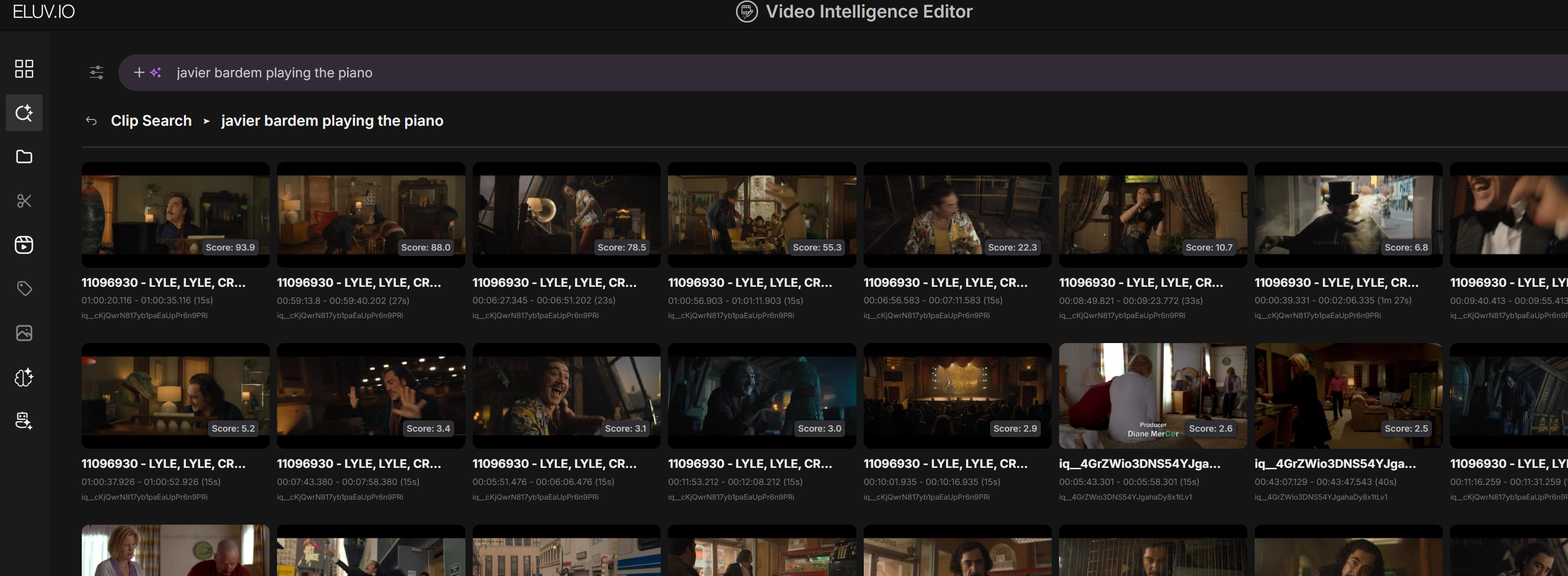
Search is available as soon as tags start landing. See the API docs: Search for clips.
GET /vector_search/indexes/<index_qid>/clip_search?terms=<query> HTTP/1.1
Host: ai-04.contentfabric.io
Authorization: Bearer <token>
EVIE
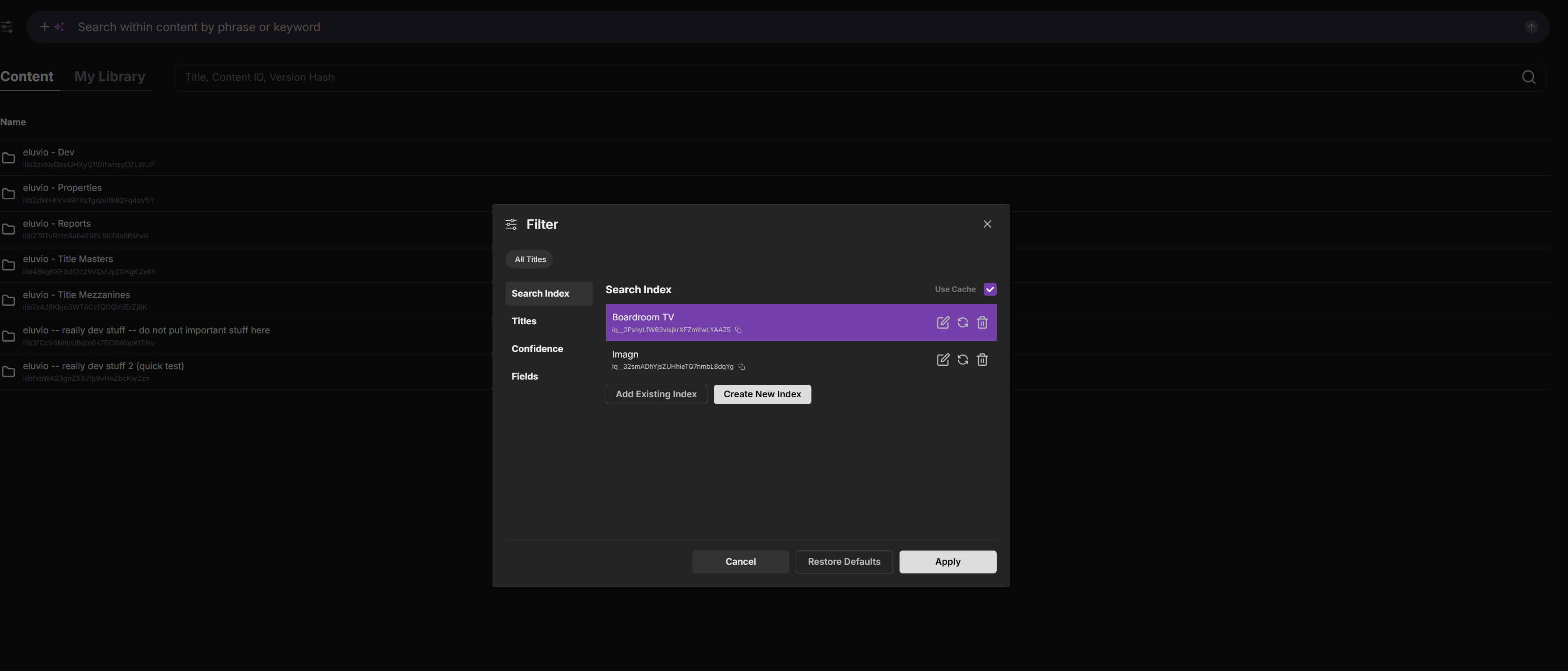
Click on index configuration

Select Add Existing Index and enter the content id for the index.